Customer Support
Portal

Raise a new case

​​Logging into the Portal

​​​The Novotek Customer Support Portal is accessible online. To access this, please use the following link: systemsupportuk.novotek.com

Image1

If you have just created an account for the first time and are already logged in, please click on your username in the top right corner, followed by clicking on “Sign Out” to test your login details.If you have just created an account for the first time and are already logged
in, please click on your username in the top right corner, followed by clicking
on “Sign Out” to test your login details.

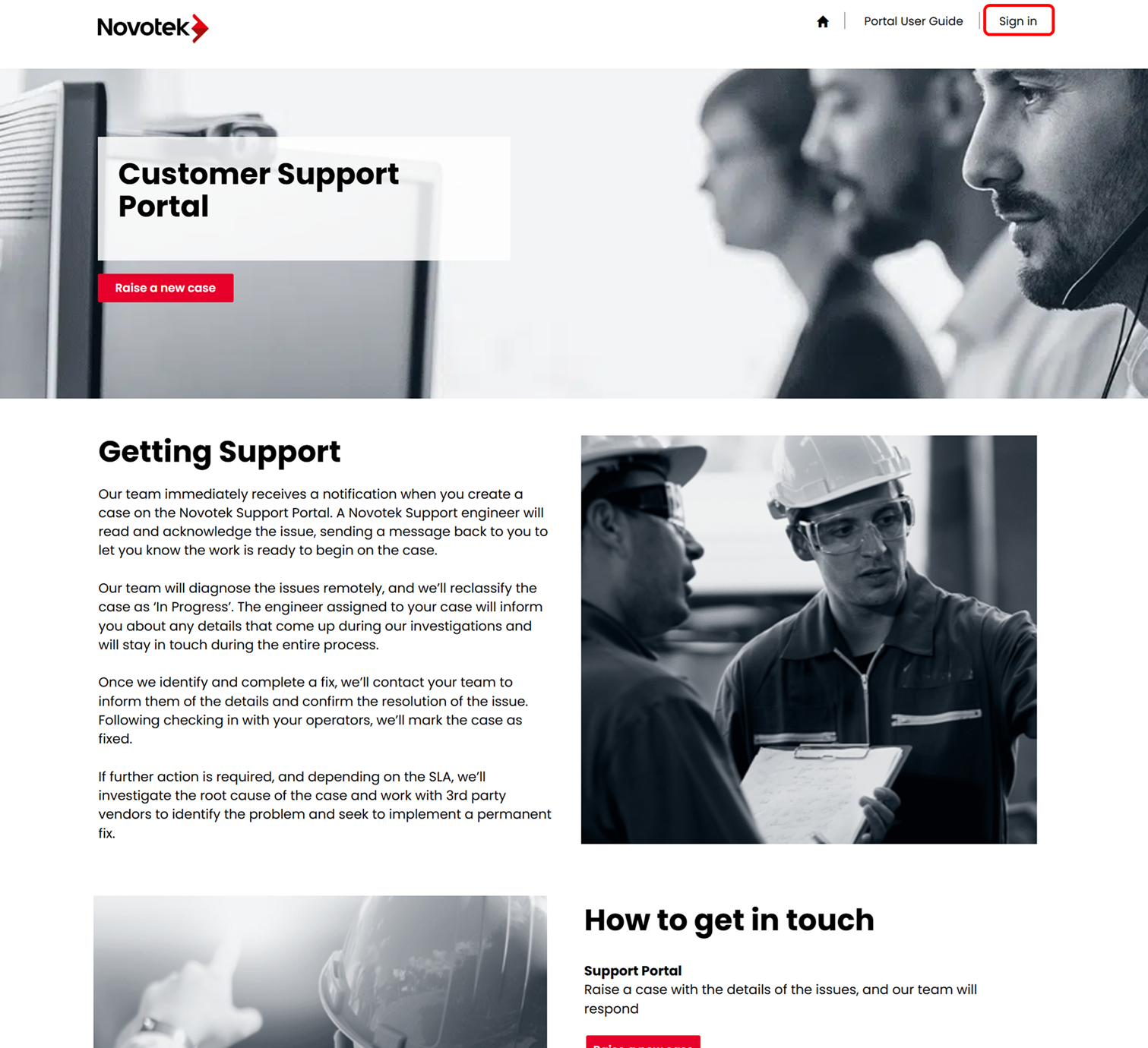
The link at the top of this page will open the Astec Customer Support Portal home page. You will need to login in order to use the portal. Click on “Sign In” on the top right of the pageThe link at the top of this page will open the Astec Customer Support Portal
home page. You will need to login in order to use the portal. Click on “Sign In”
on the top right of the page

This will open the login page. Please enter the username and password you created in section one of this guide.This will open the login page. Please enter the username and password you
created in section one of this guide.

Image2

Click on the “Sign In” button in the centre of the page. This should return you to the Home Page as a logged in user. Your username should now appear in the top right of the menu bar.Click on the “Sign In” button in the centre of the page. This should return you
to the Home Page as a logged in user. Your username should now appear
in the top right of the menu bar.

The Menu bar below allows you to quickly navigate to different areas within the portal.The Menu bar below allows you to quickly navigate to different areas within
the portal.  

Image3

The “home” icon will return you to the main home page. • “Knowledge Base” opens the Knowledge Base home page. Knowledge articles will be added to this section.
• “My Support” opens the support page. This page displays any existing support cases, as well as allowing you to raise new ones. • Your username. You can access the page to update your profile by clicking on your username, and then clicking “Profile”. • “Sign Out” is also accessible by clicking on your username. Choose “Sign Out” from the drop down menu.The “home” icon will return you to the main home page.
• “Knowledge Base” opens the Knowledge Base home page. Knowledge
articles will be added to this section.
• “My Support” opens the support page. This page displays any existing
support cases, as well as allowing you to raise new ones.
• Your username. You can access the page to update your profile by
clicking on your username, and then clicking “Profile”.
• “Sign Out” is also accessible by clicking on your username. Choose “Sign
Out” from the drop down menu. 

Image4